
Spooky Lightning in Photoshop Tutorial
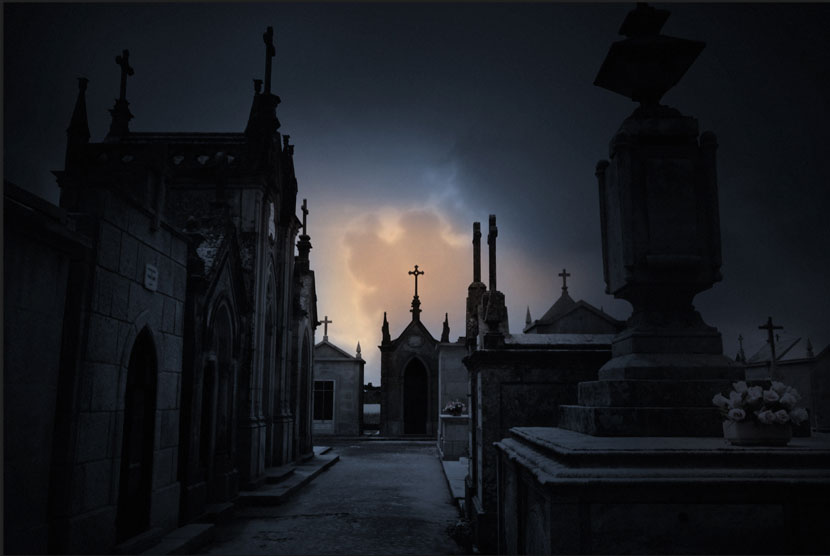
It’s getting near Halloween time and everyone is looking to make their images appear a bit more spooky. This image of a cemetery is a little scary, but realistic lightning will set the scene off perfectly. In this tutorial on making lightning in Photoshop, you will make your own lightning from scratch. (Image: Dollar Photo Club)
Step 1
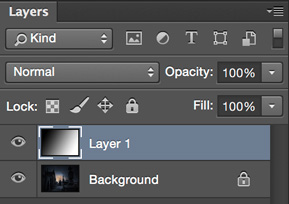
On the image, make a new layer, create a black to white gradient, diagonally from the top left, to the bottom right.

Step 2
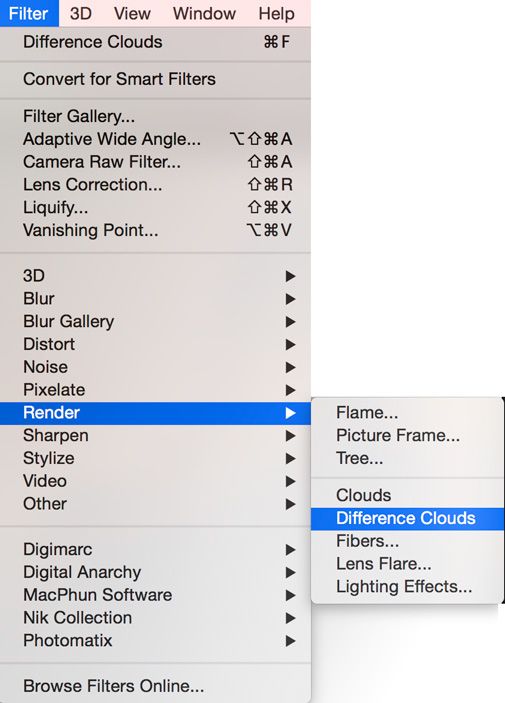
Filters>Render>Difference Clouds
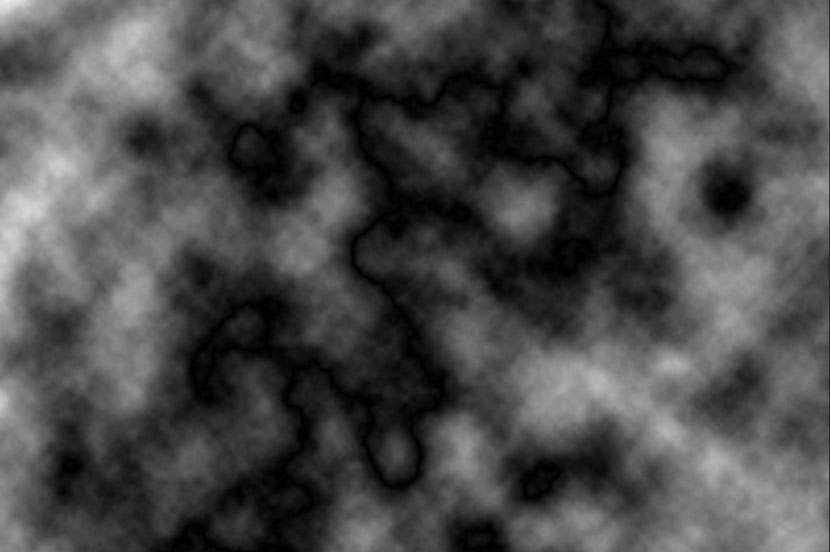
Here is the result so far
Step 3
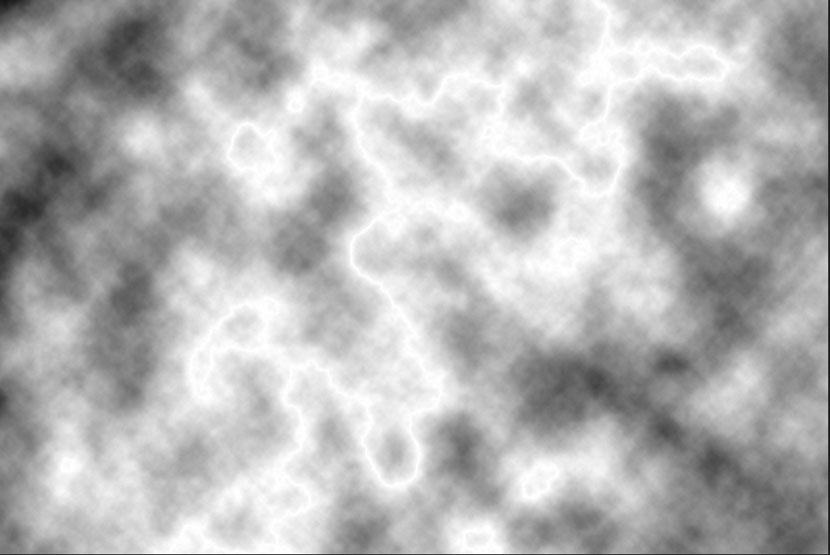
Now invert the image. Cmd/Ctrl+I
You can start to see the lightning
Step 4
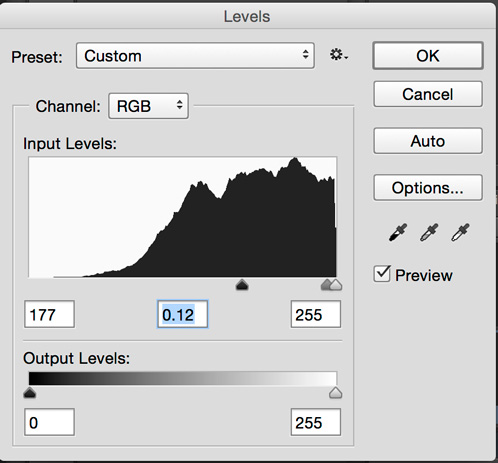
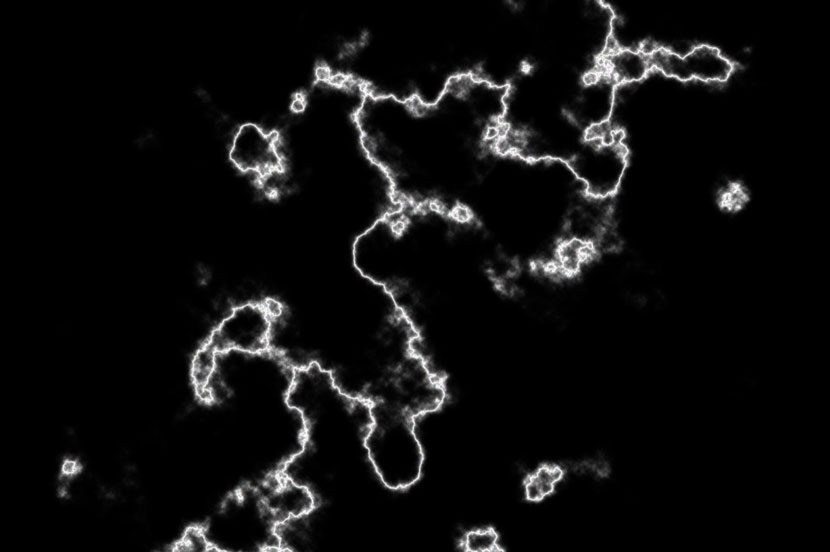
Adjust levels to bring out the lightning, Cmd/Ctrl+L.
In the levels box: slide the black arrow to the right and the middle one to the right too, until it looks nice and clean
step 5
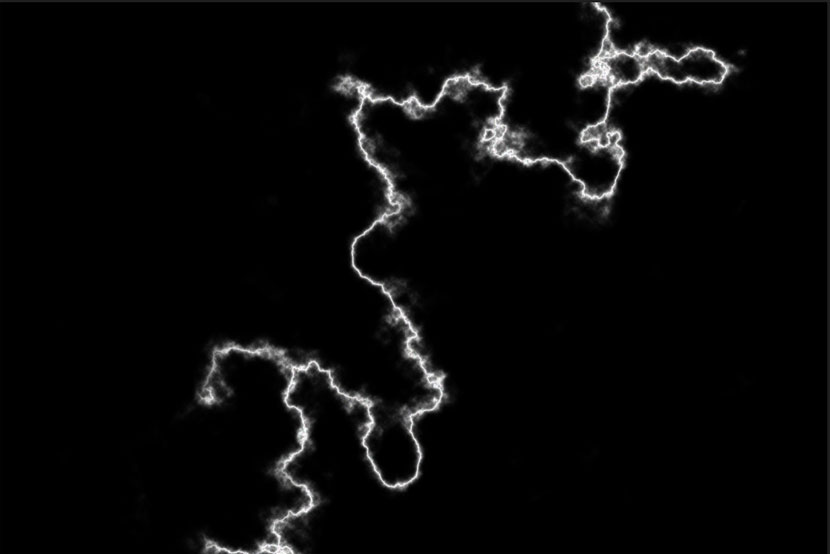
choose a black brush and clean up the lightning by painting out the areas that you don’t want
Step 6
Change the layer blending mode to Screen to allow the photo to show through underneath
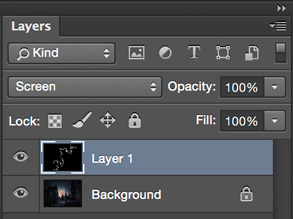
Also Choose Ctrl/Cmd+T for free transform. Use this tool to scale, rotate and position your main lightning shaft to be striking an object on the earth.
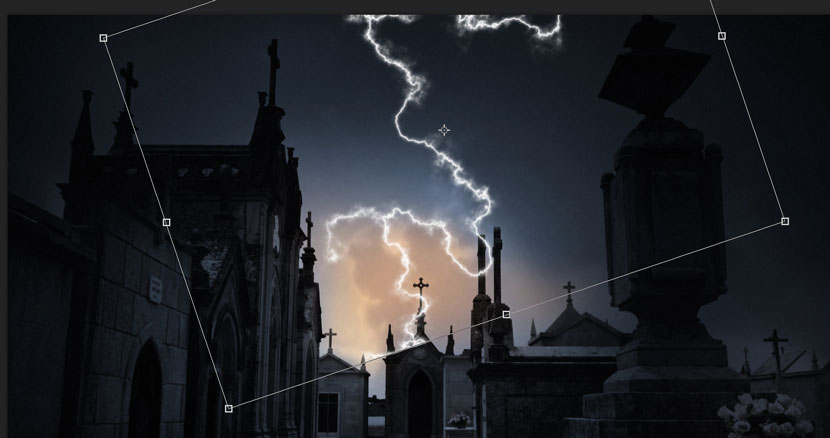
Step 7
Repeat steps 1 through 6 to create some different shaped lightning.
Duplicate the lightning layers and scale them down to build the smaller branches of lightning. Reuse each layer as much as you can to save time, flipping and rotating allows you to use each piece several times. Don’t be afraid to use some layer masks to paint out different portions of the lightning to make it look more random.
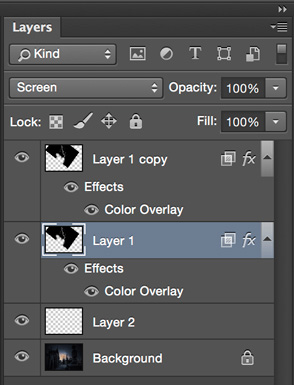
Eventually you will have something that looks a bit like this.
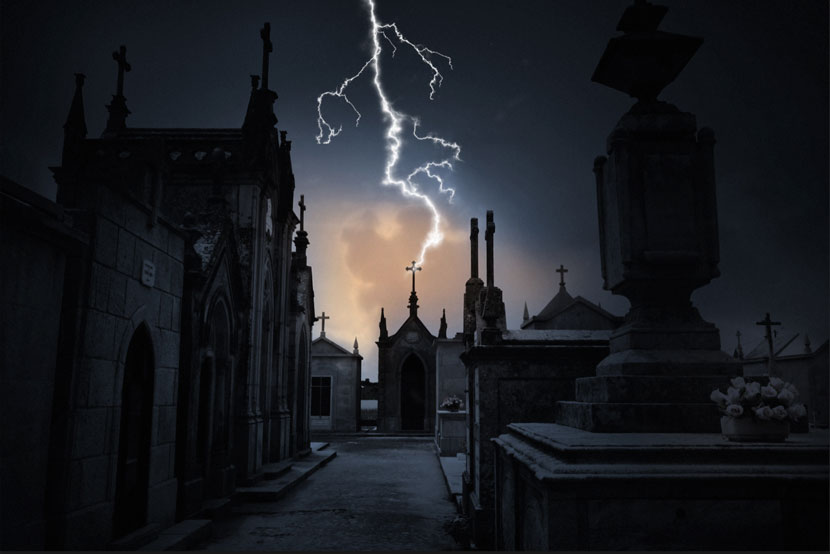
Step 8
Merge all the Lightning Layers together. Select them all and press Cmd+E to merge them. Be careful not to Merge them into the background. When you have merged them, you may need to change the Layer blending mode of all the layers to Screen again.
Step 9
Now to add a bit of color (optional): Add a color Layer style to the Lightning layer. Choose the Layer styles from the Layers panel and choose Color Overlay.
Choose a bluish/purple color
Change the Blend mode to Color in the Color Overlay
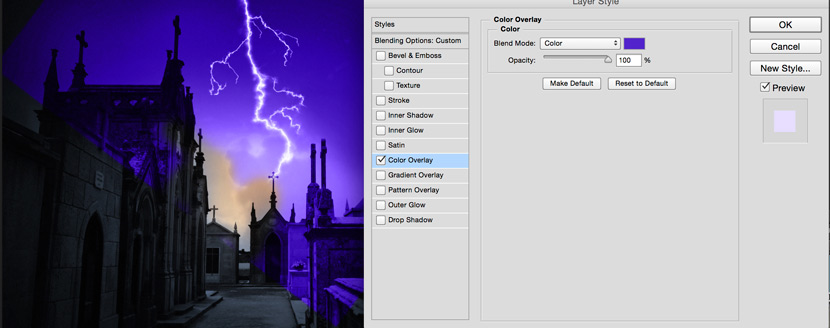
step 10
You will notice that color is covering a large part of the image, we just want it to work on the lightning.
In the Layer styles dialog box, click on the “Blending Options: Custom” at the top. This takes us into advanced blending options.
The secret here is to turn on the top option that says “Blend Interior Effects as a group.”
(I have written a bit about these hidden options over the years for my Photoshop tips column for Photoshop User Magazine. )
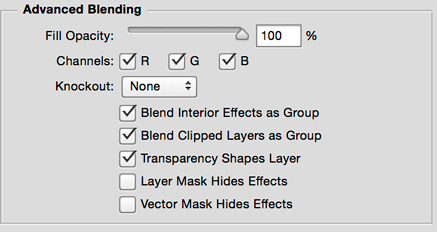
Notice now, the color is isolated to our lightning.
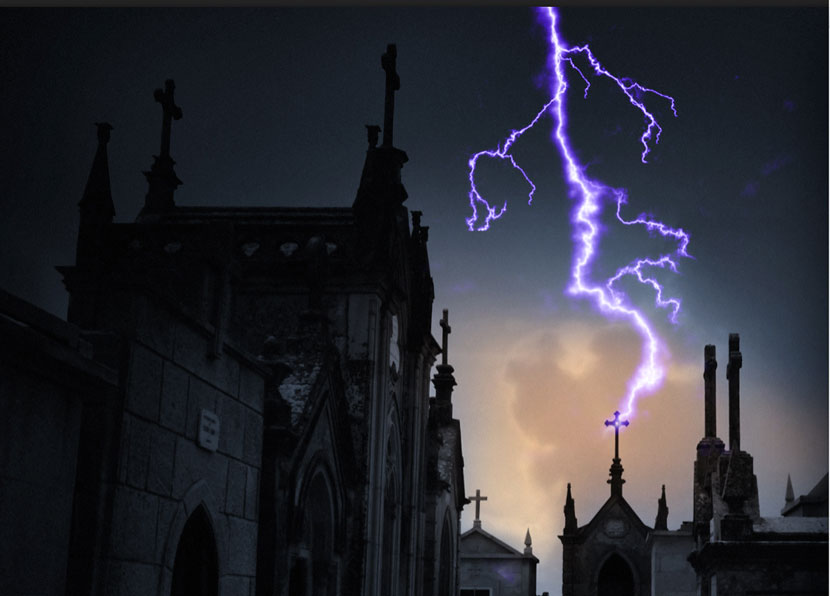
Step 11
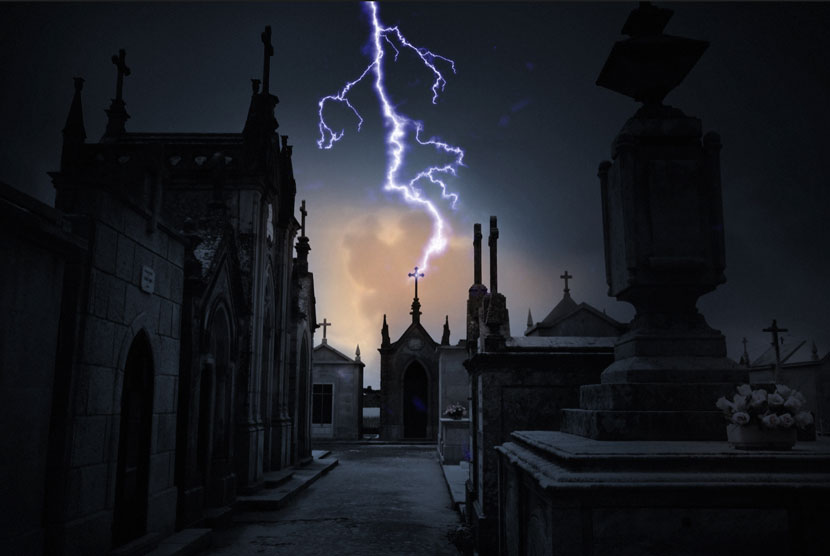
Make some final adjustments to the color and opacity so that it blends into the photograph better.
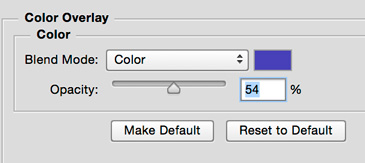
the result
extra credit
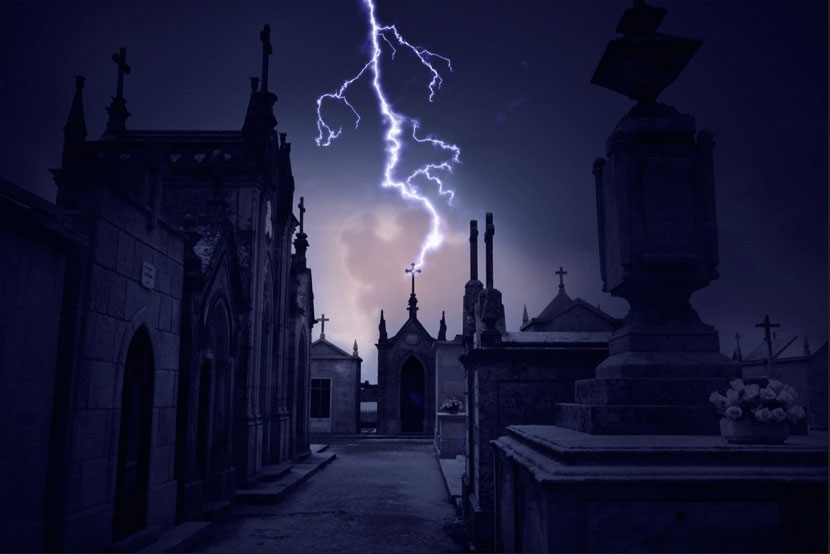
If you want to experiment a bit more, sample the color for the lightning with the eyedropper tool. create a new layer and fill with the color.
Change the blend mode to color for this kind of effect.
Of course you can also add a gradient to a layer mask to only effect the top if you want more realism.
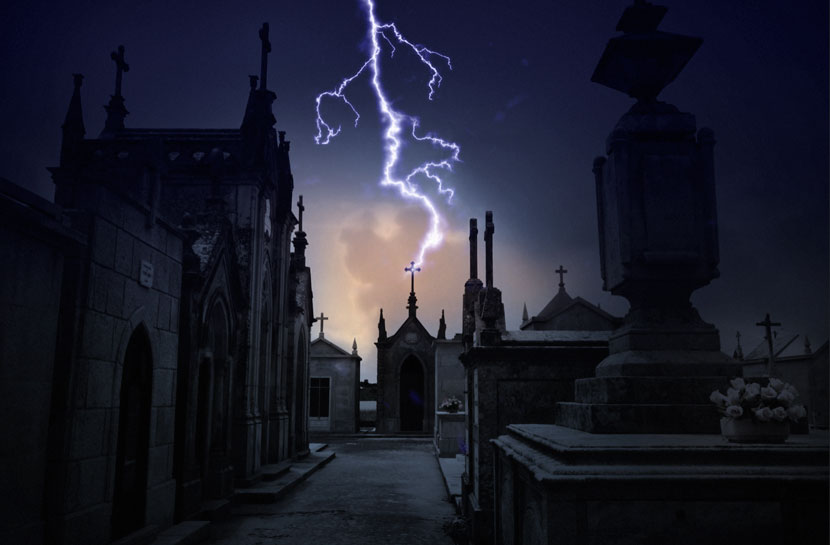
So there you go. That’s my take on making lightning, it’s progressed a lot from my original tutorial


No comments:
Post a Comment